Nitekin Darkbow

For years he's always been
going where he shouldn't!!
For the current TeamSpeak address please refer to Nitekin's message of the
day in WoW. Using the address in the instructions will get you
nowhere!
Quick and dirty instructions with picture links (for those that just can't
put tab "A" into slot "B")
Installing and setting TeamSpeak up with your computer
- Go to http://www.goteamspeak.com
and download the TS2 client (not the server) for Windows.
- Install the client (No reboot will be needed) with the default options
- Start up TeamSpeak
- Setup TeamSpeak with your soundcard and mic by going to "Settings" then
"Sound Input/Output Settings"
- Change the Test Codex to "Speex 9.3"
and press "Activate Local Test Mode"
- If you cannot hear yourself in the test mode no one can hear you in
TeamSpeak either! Help is available at
http://forum.goteamspeak.com
- TeamSpeak has random connection issues when trying to run over a
wireless connection (this includes .11g). If you are having trouble
connecting then try resetting your wireless hub and NIC.
Installing and setting TeamSpeak up with your computer
- Start up TeamSpeak
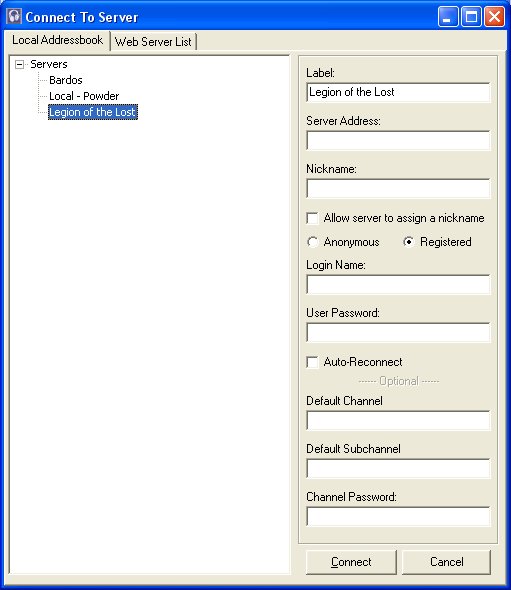
- Click on "Connection" then "Connect"
- Right click the empty space in the server list area and left click on
"Add Server"
- Type in "Legion of the Lost" or
whatever you want this connection to be listed as
- Select "Registered" and empty all
the fields below that if there is anything in them
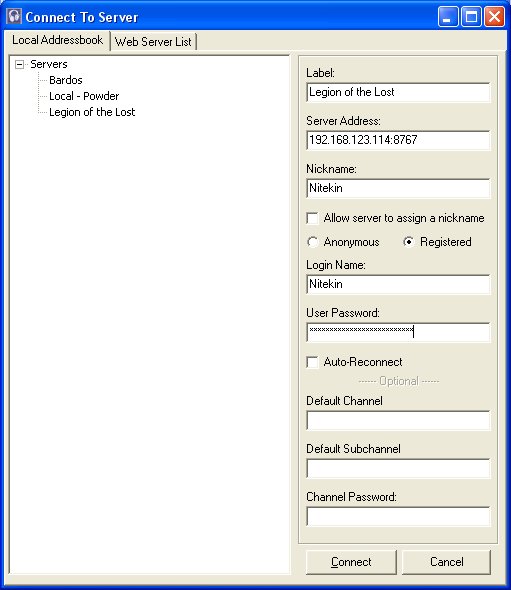
- Switch it back to "Anonymous" and enter in the server IP address from
the guild message and be sure to add the ":8767" at the end of it!
Fill in your desired Nickname and make sure
"Allow server to assign a nickname" is turned off!
- Click "Connect" and see of you get connected
- The very first time you are connected
you are in "Guest" mode and cannot do much more than talk.
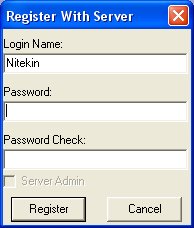
- Select "Self" and "Register with Server"
- Enter in your desired login name and
set a password - this name does not have to match your nickname. You
can always change your nickname over and over so that you will be listed by
whatever Alt Peep you are playing that day.
- A successful registration will be
displayed in the comment section
- Now click "Connection", "Disconnect" then "Connection" and "Connect".
- Select the name of the connection you just created
- Change the type to "Registered".
Enter in the name you registered and the password you used. Make sure
the rest of the fields below that are blank.
- Now click "Connect" and after you are
connected you can start talkin!! (Provided anyone listens to you
in the first place!)